Keep a clear history
Find readings by date.
Photograph your monitor, confirm the numbers, and keep your readings organized—ready to share with your doctor.
A familiar monitor. A simple photo. A little less to keep in your head.
Point your camera at the monitor, or at the page you wrote the numbers on.
The numbers come back in editable fields. Nothing is saved until you approve them.
Confirmed readings join your history, ready to chart, export or print.
Take one clear photo of your blood pressure monitor. Review the extracted numbers once, then keep every reading organized without stacks of paper logs.
Try a sample. No photo or account needed.
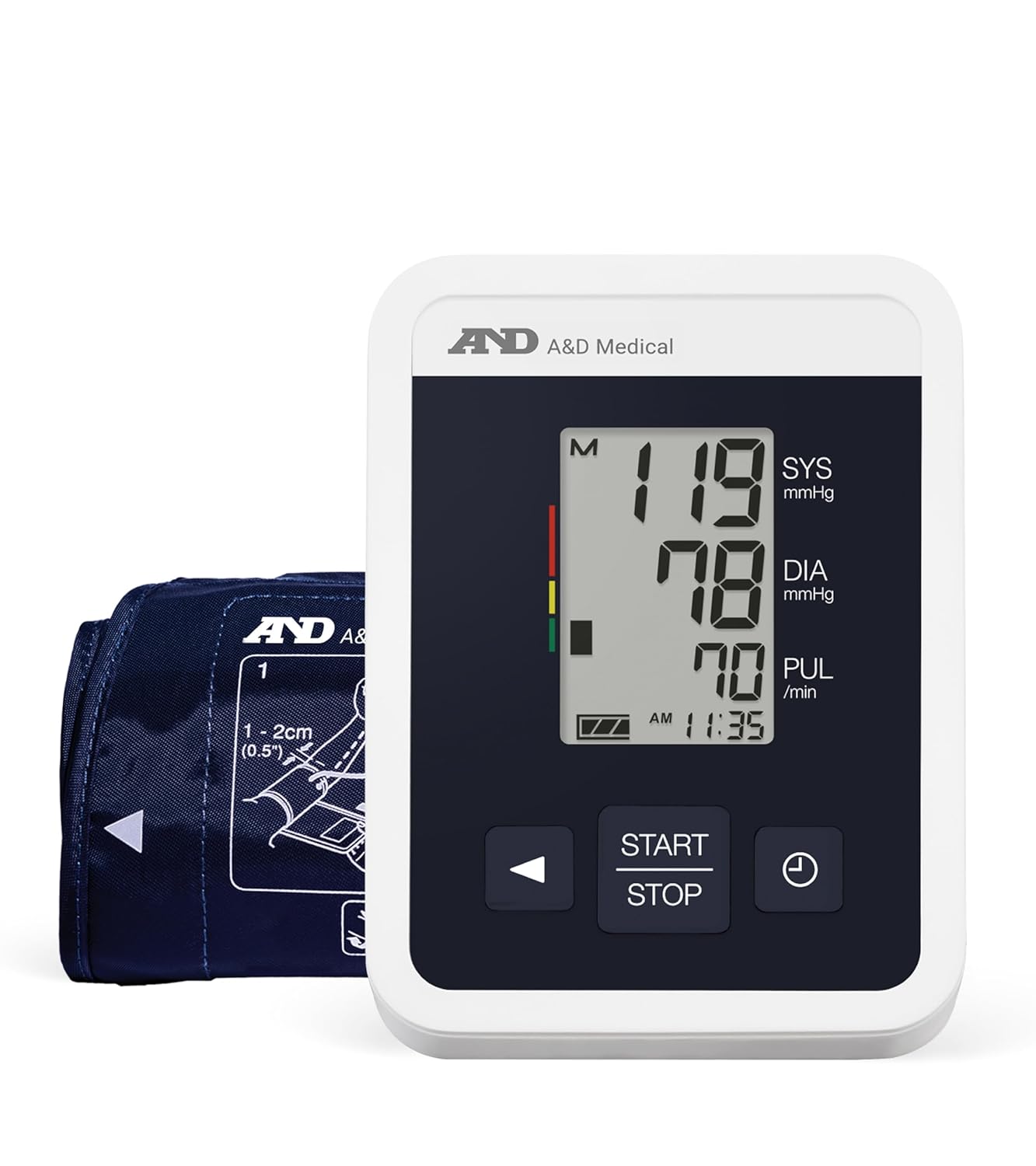
This illustrated monitor is our sample. In the real flow, you would use a photo of your own device.
Only fictional sample values are used here. Nothing is uploaded or saved to an account.
Keep a clear history, add context, and prepare for your next appointment.
| Day & time | Blood pressure | Pulse | Notes |
|---|---|---|---|
| Day 308:15 | 128/82mmHg | 72bpm | Before breakfast |
| Day 220:10 | 126/80mmHg | 70bpm | Evening |
| Day 208:05 | 130/84mmHg | 74bpm | Morning |
Illustrative readings, not medical advice.
A simple record of your readings and the context that goes with them.
Open your diaryFind readings by date.
Add notes to each reading.
Export readings to discuss with your doctor.
Most people already have a system: a pad beside the monitor, a note on the fridge door, a photo in the camera roll. You don't have to give any of it up. Fill the page in by hand the way you always have, then photograph it and let the chart draw itself.
No pairing, no supported-device list, no batteries to think about. If a photo shows the numbers clearly, they can go in your diary — upper-arm or wrist, this year's model or the one in the drawer.
Read the monitor guidesEveryday choices for your tracking routine. A clear display is all you need to get started with a photo.
As an Amazon Associate I earn from qualifying purchases.

I built Monitor2Log because I wanted to help my mother and father measure and keep track of their blood pressure more easily.
They’re always joking that the average of their blood pressure is okay. That small family joke became the inspiration for a tool that makes the numbers feel clearer, calmer, and a little more human.
At least the average is okay.

Wishing the very best to everyone—and especially to the people you love enough to keep checking in on.
Photograph your monitor's display, or a page from your paper log. The image is read by Google's Gemini model, which returns the numbers as draft rows. You check each row against the photo, correct anything that looks off, and confirm it. Only what you confirm is written to your diary, and the photo itself is never stored.
Fast, not flawless. Glare, blur, a tilted screen or unusual handwriting all cost accuracy, and a date written as 3/9 is genuinely ambiguous. That is exactly why nothing is saved unconfirmed: every value arrives in an editable field and waits for you. Treat it as a typist who saves you keystrokes, not as an authority on your numbers.
No. Monitor2Log is a record-keeping tool — a neater notebook, nothing more. It does not diagnose, interpret, grade or treat anything, and it will never tell you that a reading is good or bad. Ranges and decisions belong to your doctor. If a reading worries you, or your monitor shows a warning symbol, contact a clinician.
All of them. There is no Bluetooth pairing and no supported-device list, because the app reads a picture instead of talking to hardware. Upper-arm or wrist, this year's model or a fifteen-year-old one, any brand — and a handwritten log works just as well. Our monitor guides explain what a particular display is telling you.
Manual entry, your chart, your full history and Excel export are free, and stay free. Scanning includes three free units each month. A monthly plan is $5.99 for 100 scan units; a yearly plan is $49.99 for 1,200 units. A monitor uses 1 and a notebook page uses 2. Plans renew through PayPal until cancelled, and your data is never held behind a payment.
Photos are not stored. Each image is processed by Google through Firebase AI Logic to extract the numbers, then discarded. Confirmed readings live in your own account, visible only to you. You can export everything to Excel or delete any reading at any moment, and deleting means deleting. The privacy notice sets out the details.
The app works in 13 languages: English, Hebrew, Spanish, German, French, Russian, Italian, Portuguese, Turkish, Japanese, Dutch, Polish and Simplified Chinese. Hebrew is properly right-to-left rather than merely translated: layout, arrows and number direction all follow the script, so nothing reads backwards. Switch language from the globe in the header whenever you like — your readings stay exactly as they are. Articles and guides on this site are published in the same languages, though not every article is available in every one.
Two ways, depending on what your clinic prefers. Export a date range to Excel and email or print it, or bring the printable log sheet filled in by hand. Either way the appointment starts from a dated list of readings with your own notes attached, instead of a rough memory of how last month went.
Display and entry preferences stay in this browser.
Date and time for monitor scans: This phone’s time when you scan


